Cloudways sign-up and server setup
Sign up for Cloudways, create the server for your website and invite Vikingo Studio as a team member, step by step in about 15 minutes.
Last checked: 22 October 2026
The hosting is in your name and paid from your card, and we work on the server as team members. Click any screenshot to see it larger.
About 15 minutes. You will need an email address, a mobile phone (for an SMS code) and a payment card. The first 3 days are free; the card is only charged 1 dollar for verification, which is refunded automatically. Without a card the account stops after 3 days.
Steps
1. Sign up
Open this link: vikingo.hu/go/cloudways
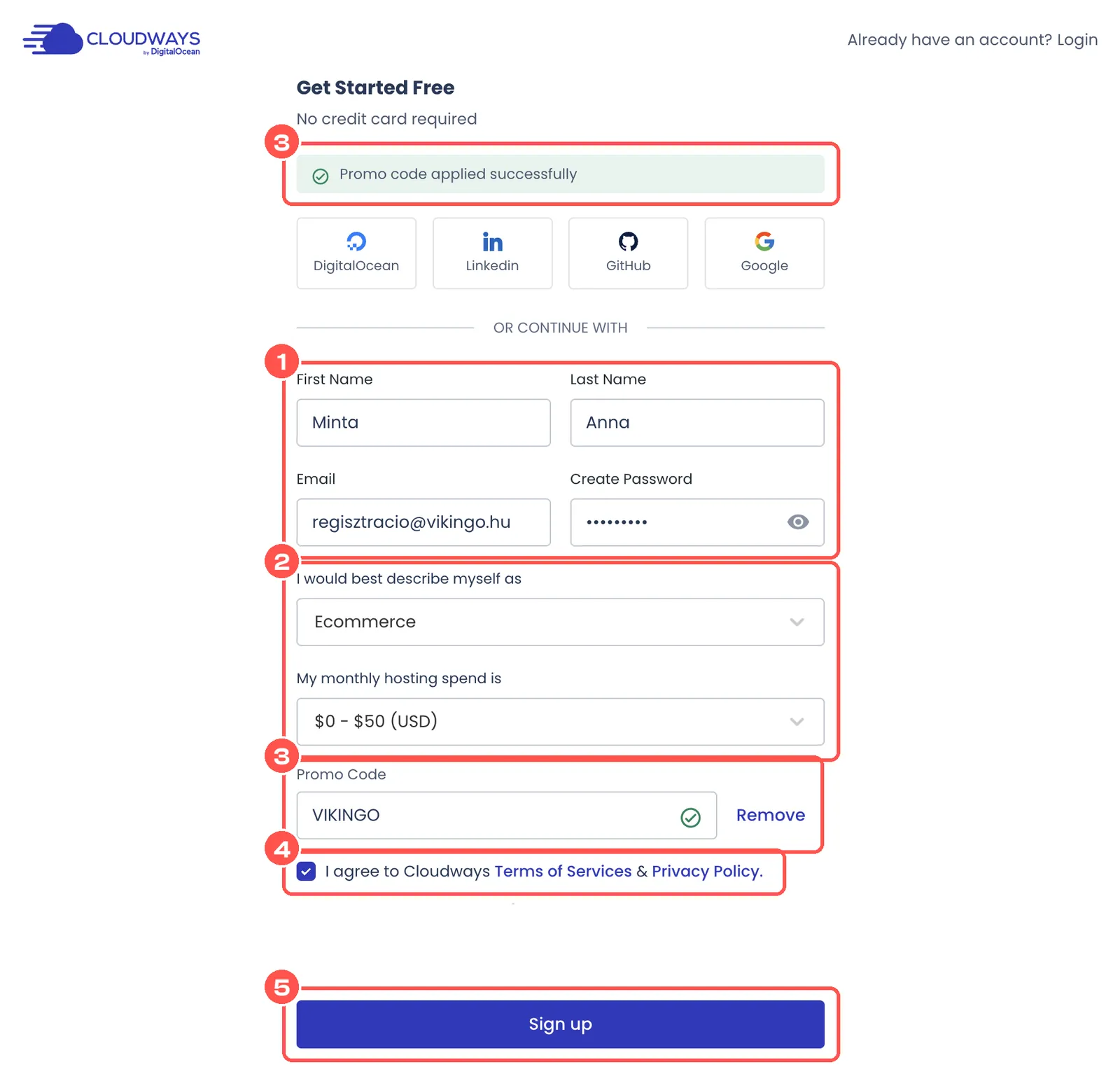
- Enter your name, your email address and a password.
- In the two dropdowns choose Ecommerce and $0 – $50 (USD).
- Click I have a promo code and enter
VIKINGO. If it worked, a green bar at the top says “Promo code applied successfully”. - Tick the box to accept the terms and complete the Cloudflare check (“I am human”).
- Click the Sign up button.
2. Verify your email address and phone number
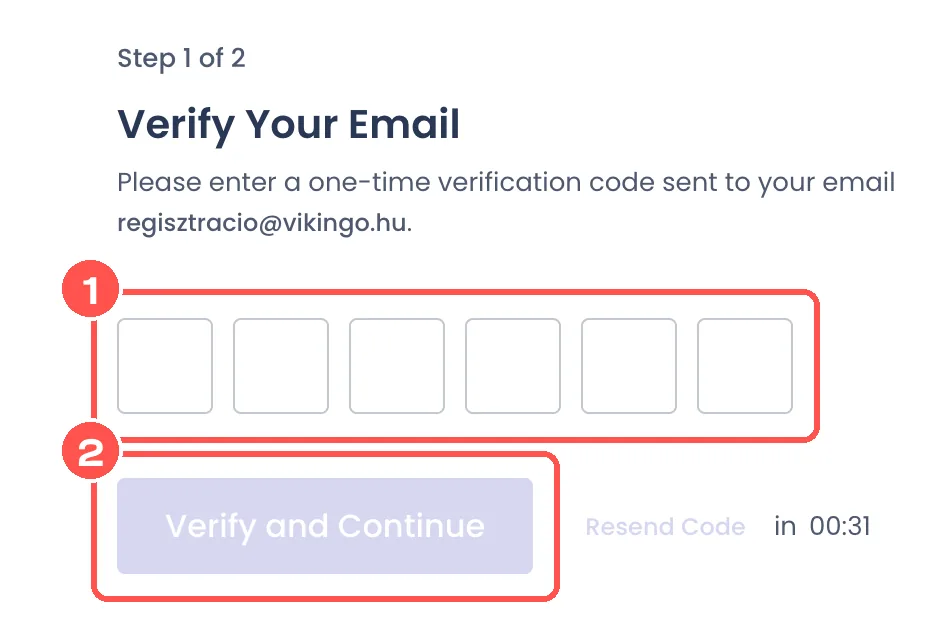
- Enter the 6-digit code you received by email.
- Click the Verify and Continue button.
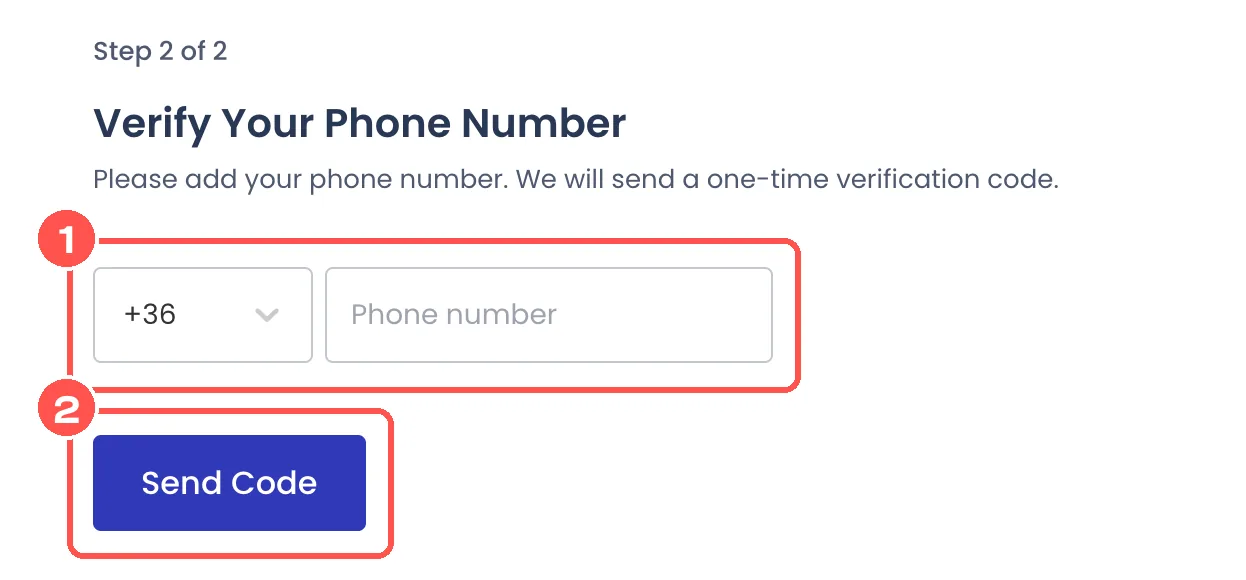
- Choose your country code (for Hungary +36), then enter your phone number.
- Click the Send Code button and enter the code from the SMS.
3. Add a payment card
Without it the account stops after 3 days and we cannot reach the server either.
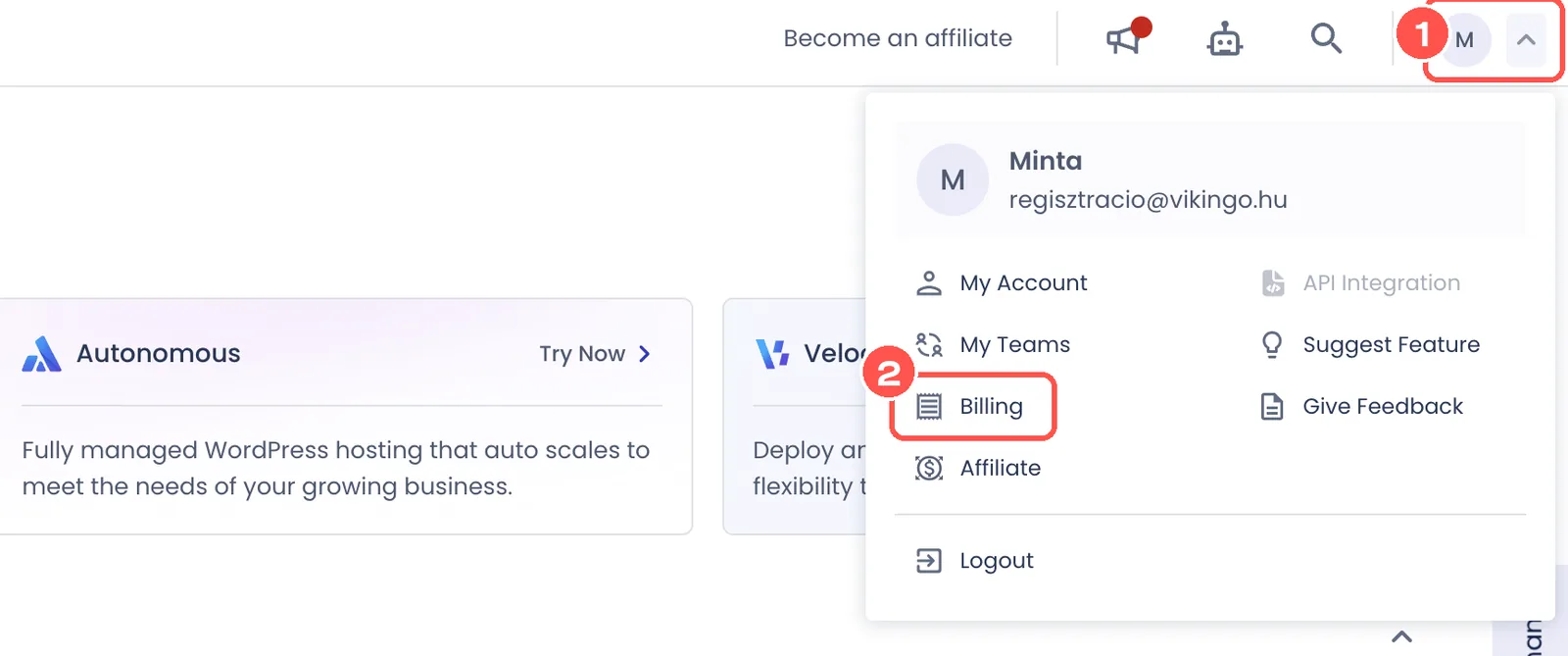
- Click your profile at the top right (your initial in a circle).
- Choose Billing.

In the Payment Method section click the Add Payment Method button.
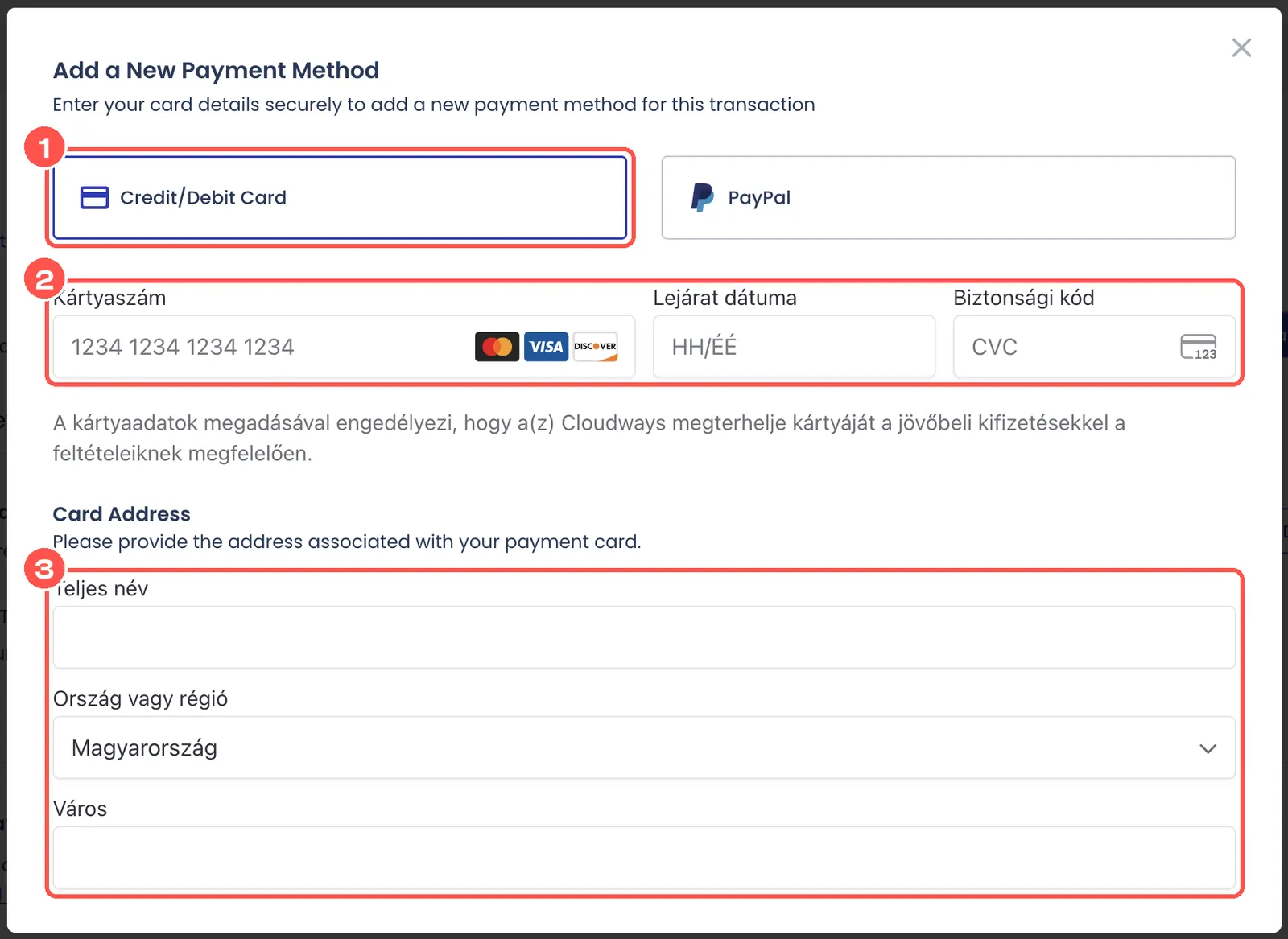
- Choose Credit/Debit Card.
- Enter the card number, the expiry date and the security code (CVC).
- Fill in the name and address that belong to the card, then save.
4. Create the server
In the left-hand menu click Flexible.
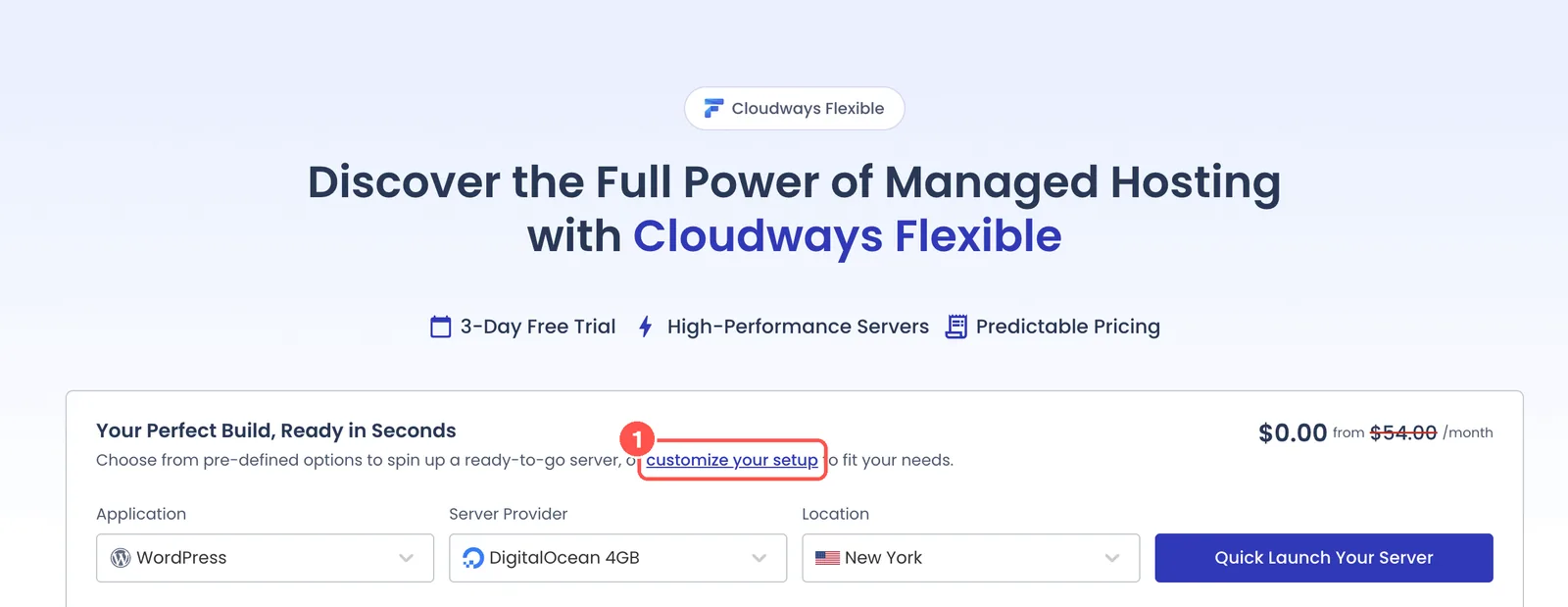
Click the customize your setup link. Do not use the Quick Launch button, because it would start the server in New York.
Application
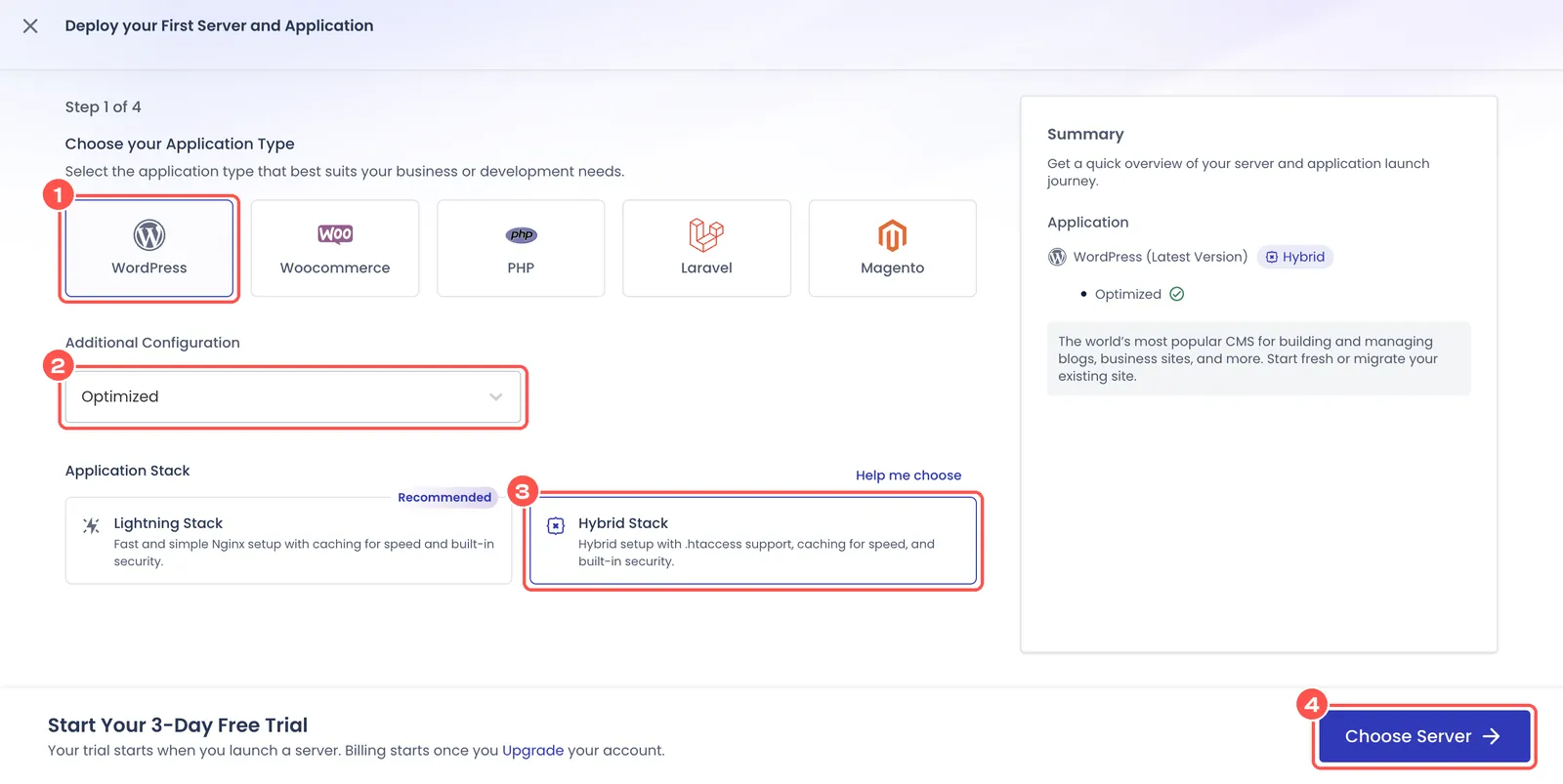
- WordPress
- Optimized
- Hybrid Stack (do not pick the recommended Lightning Stack)
- Choose Server
Provider and location
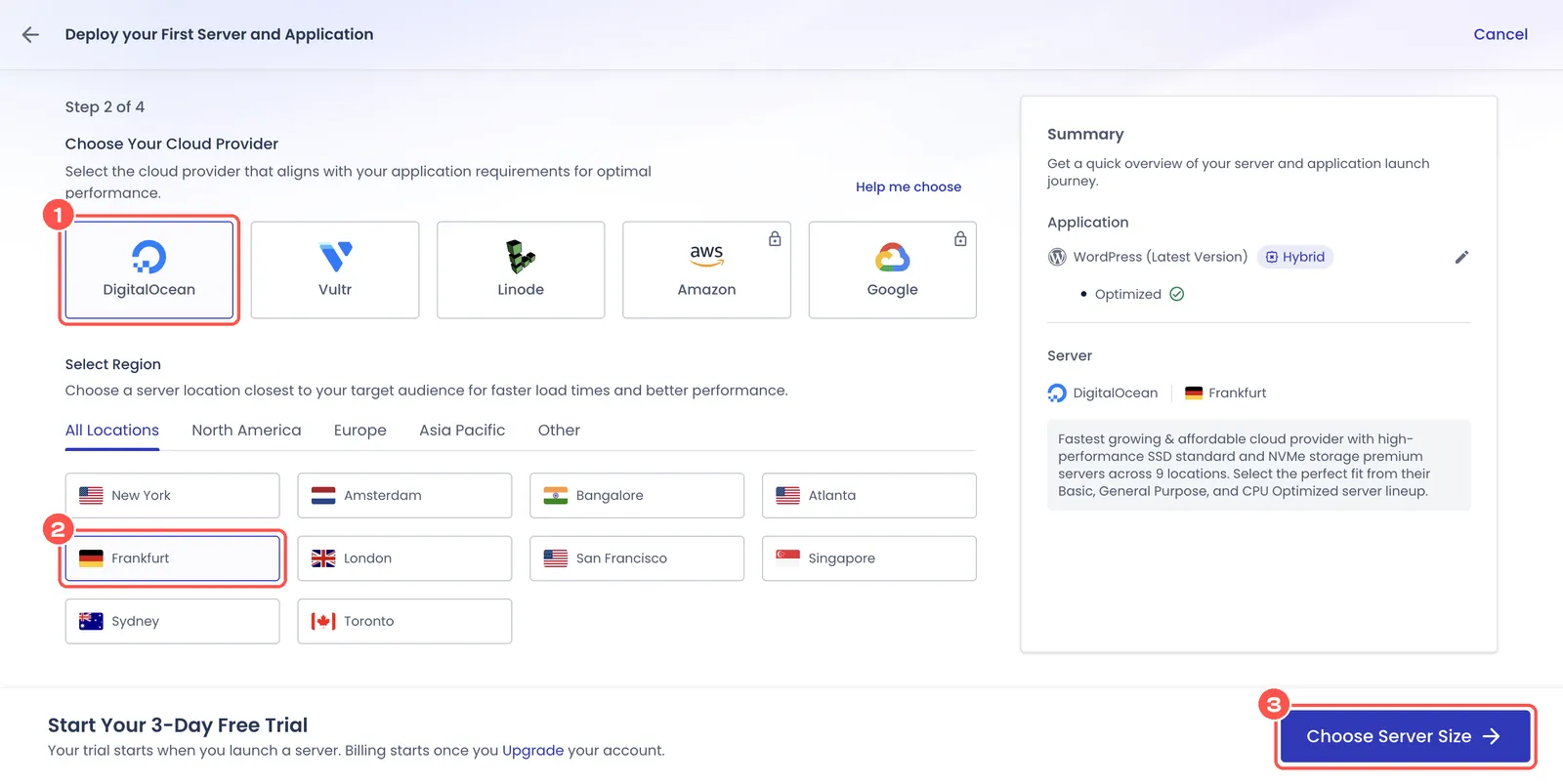
- DigitalOcean
- Frankfurt: it is the closest to Hungary and cannot be changed later.
- Choose Server Size
Server size
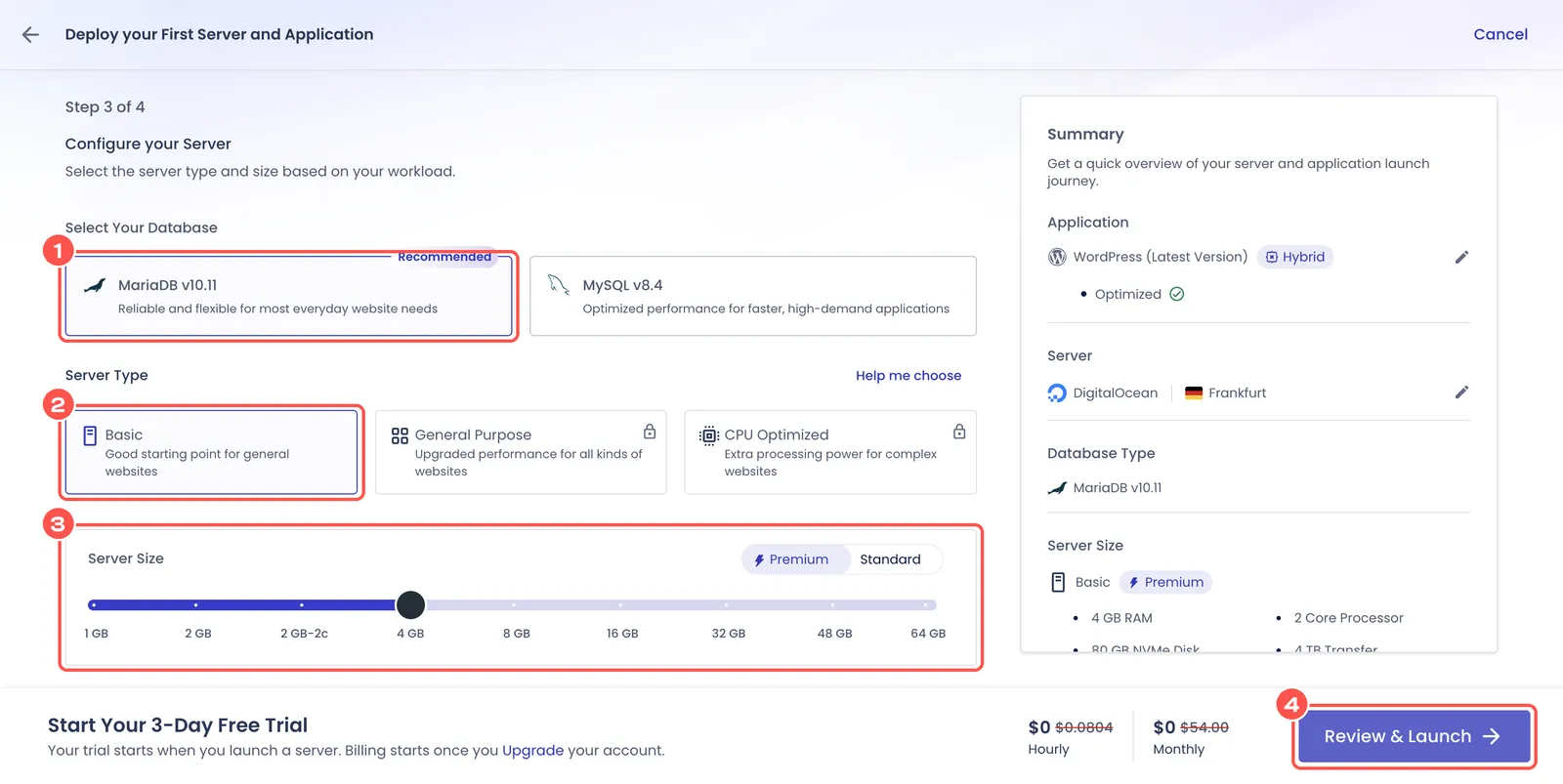
- MariaDB
- Basic
- On the slider: 4 GB (Premium)
- Review & Launch
Name and launch
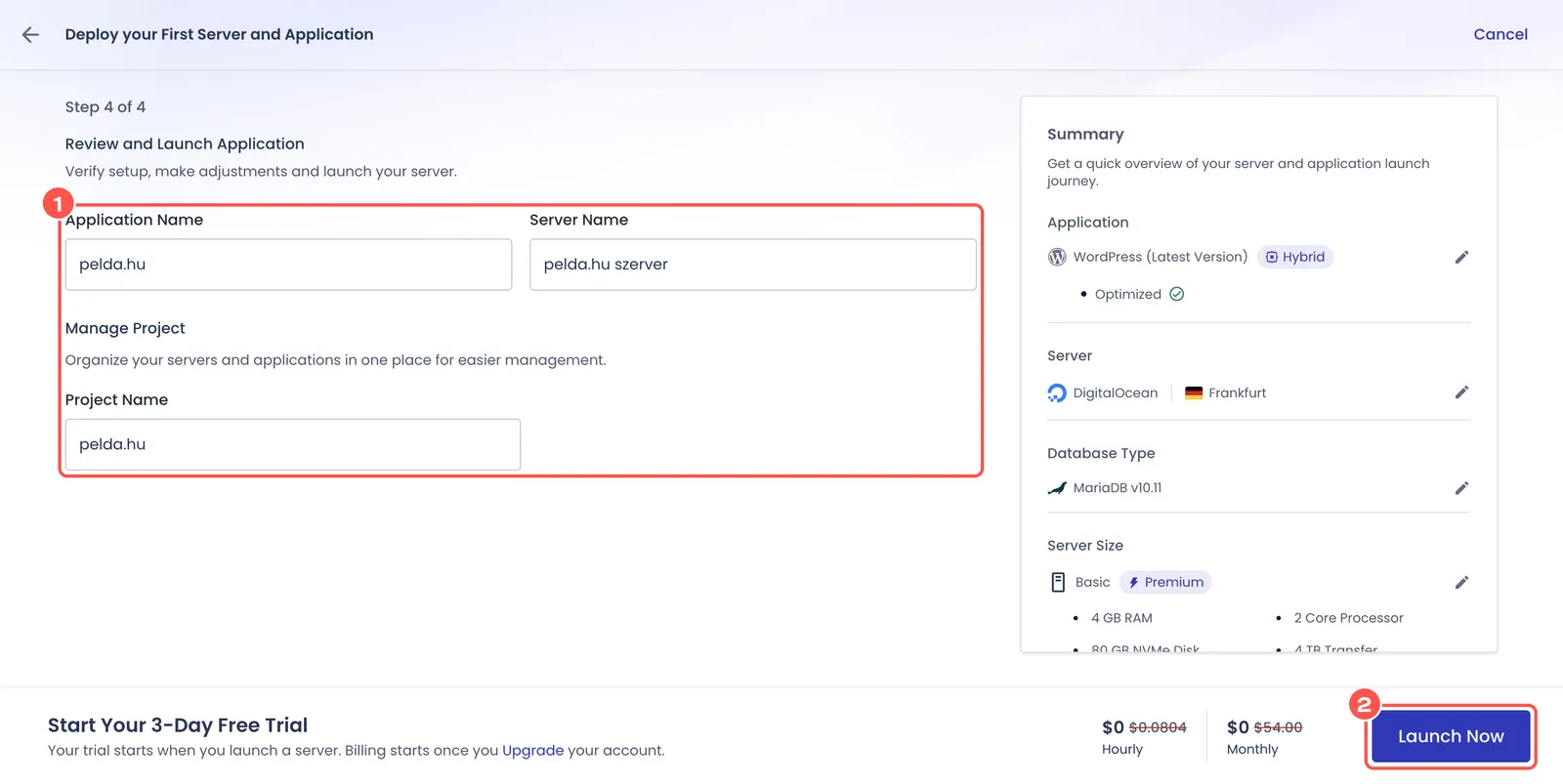
- Enter your domain in all three fields (for example
example.com). - Click the Launch Now button and wait until the server is ready.
5. Invite us as a team member
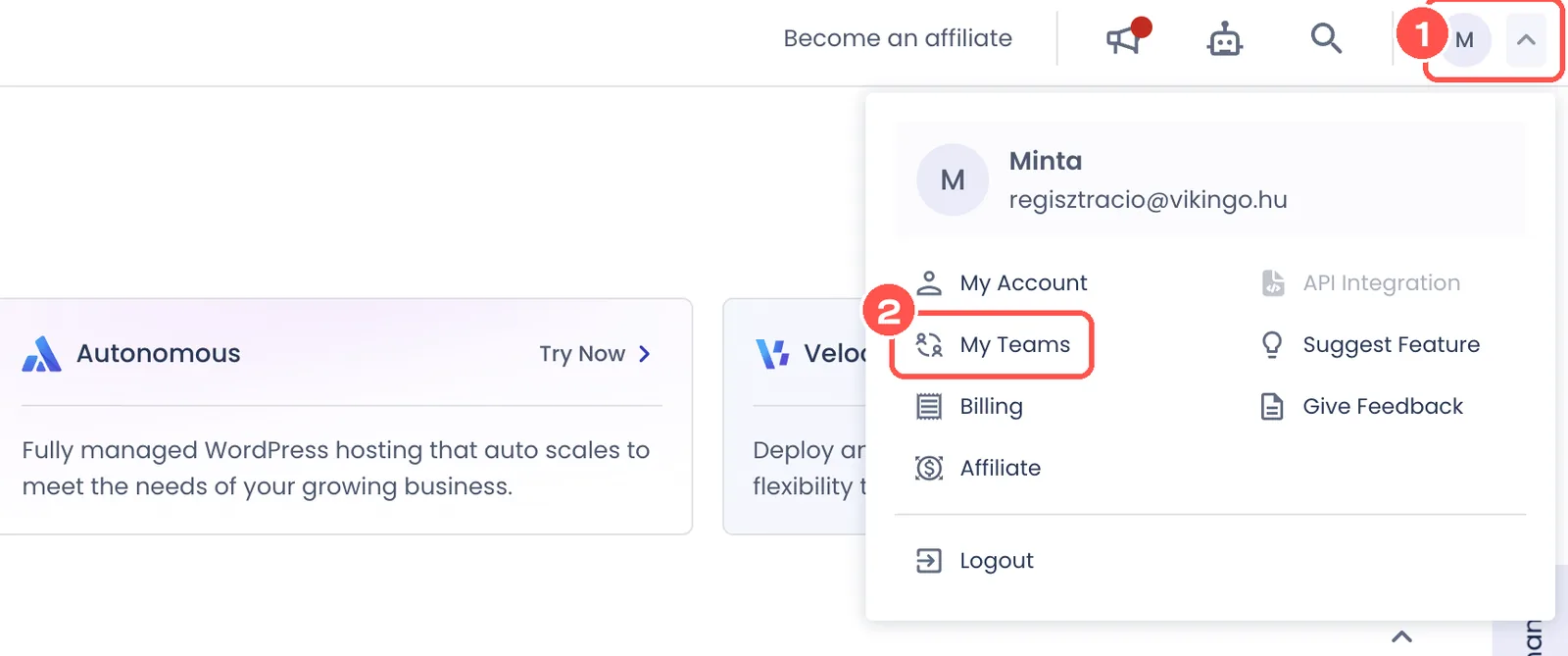
- Click your profile at the top right.
- Choose My Teams.
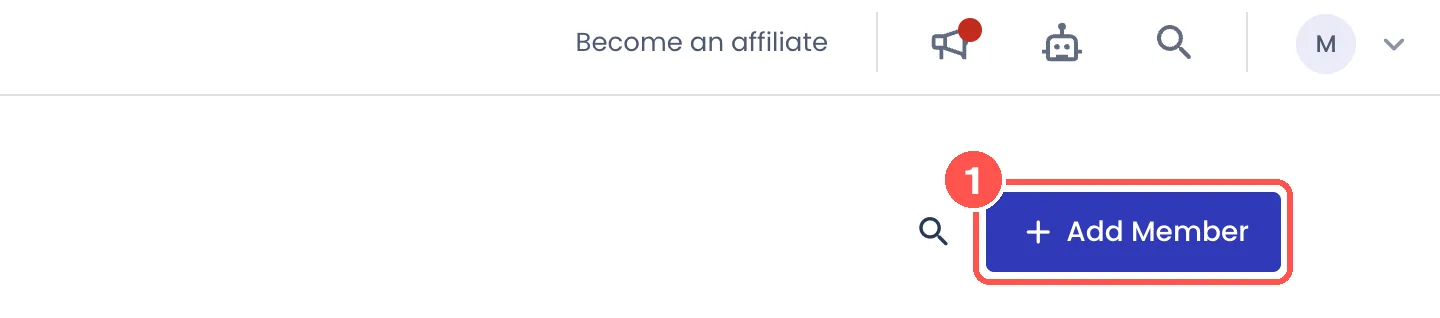
Click the Add Member button.
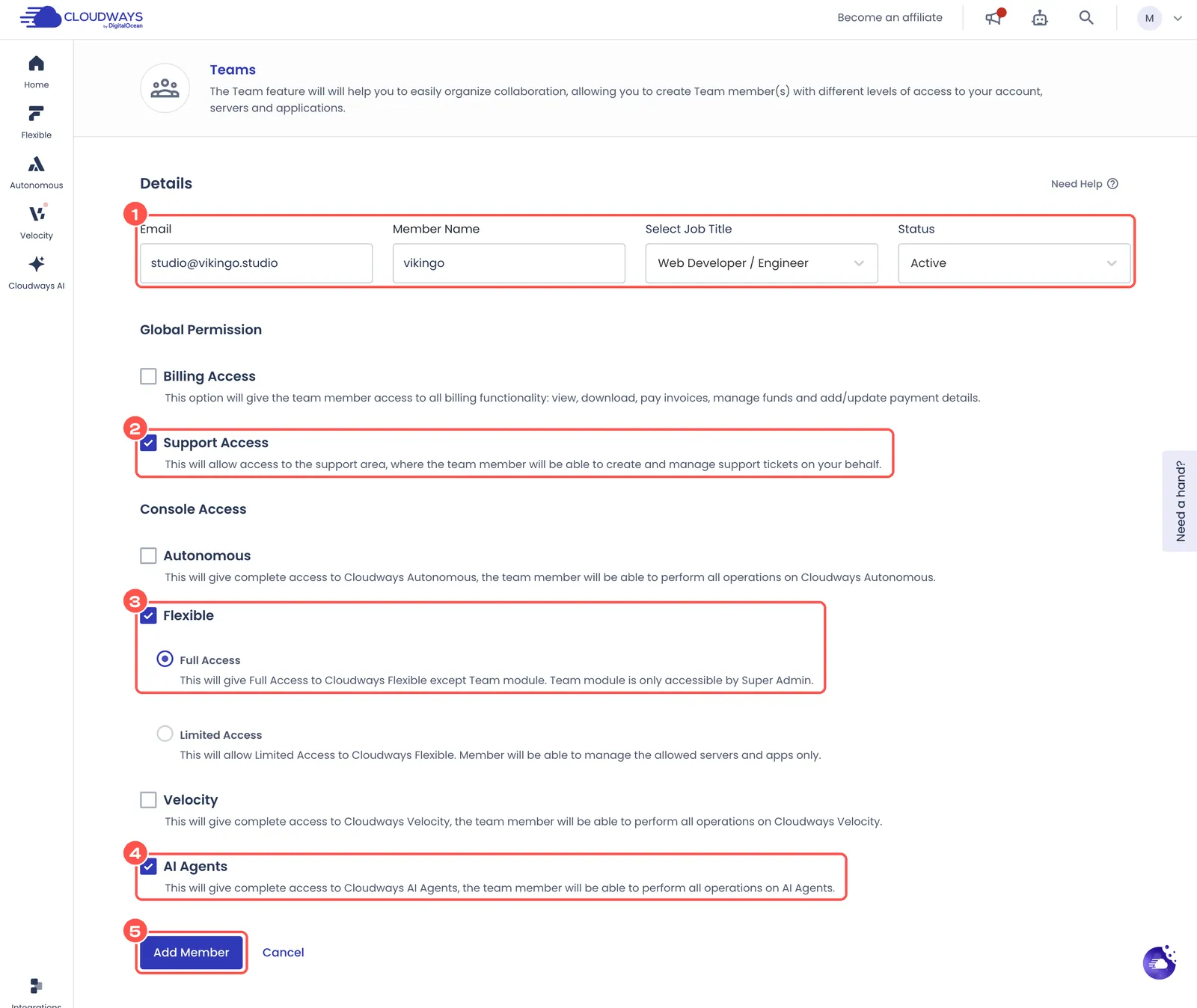
- Email:
studio@vikingo.studio, Member Name:vikingo, Job Title: Web Developer / Engineer, Status: Active - Tick Support Access
- Tick Flexible and choose Full Access below it.
- Tick AI Agents
- Click the Add Member button.
All done. Get in touch with us and we will take it from here.