Uploading images to your website
Choosing, sizing and naming good images, optimising them with the Vikingo Image Optimiser and uploading them to WordPress, with good and bad examples.
Last checked: 29 October 2026
Images make the first impression of your website. They are also the largest files on it: a phone photo is 3–5 MB, the same photo prepared for the web is 300–400 KB, yet you can’t see the difference. That way the page loads quickly on mobile too, which Google also pays attention to. Click the images to see them larger.
About 10 minutes. You will need: your images in one folder and a browser. The Vikingo Image Optimiser (Képoptimalizáló) is free, needs no sign-up and your images never leave your computer.
Steps
1. Choose a good image
Your own good-quality photo always beats a stock image: visitors want to see your real team, products and place. If you can, have a photographer take them.
Bright and sharp
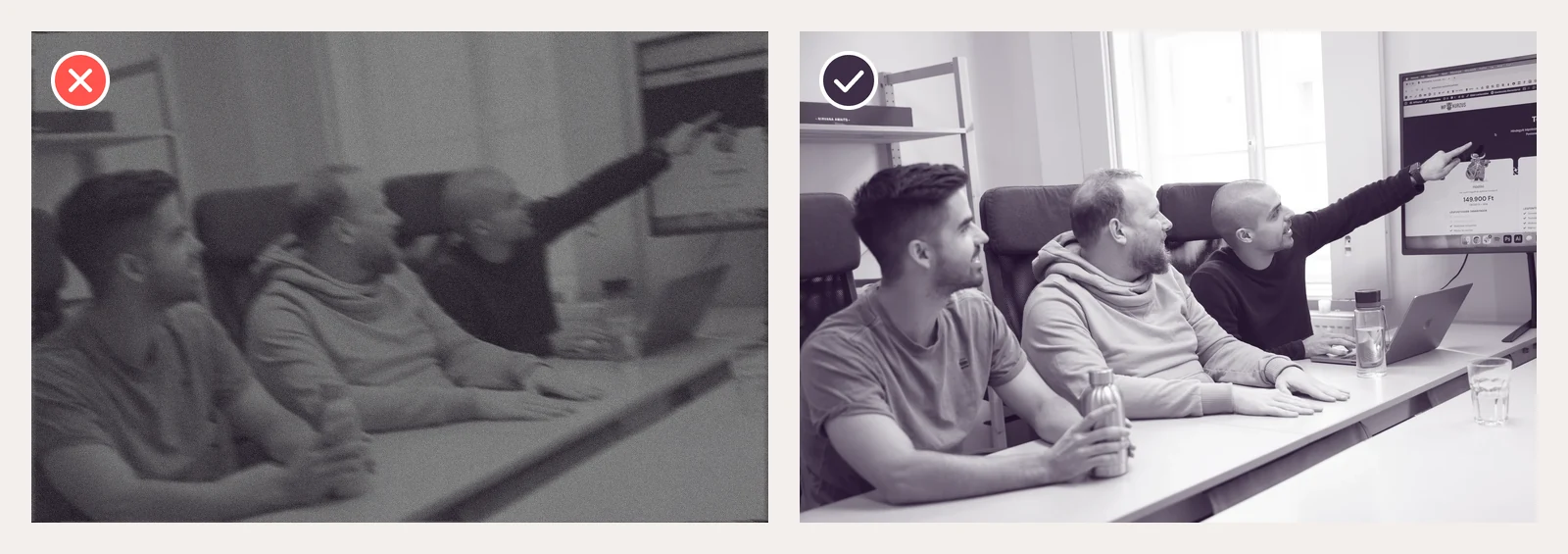
Don’t: dark, blurred, tilted. Do: plenty of light, sharp, straight, faces clearly visible. Shoot in daylight with your subject facing the window, and hold the phone with both hands or rest it on something.
No text on it

Don’t: a slogan written on the image. It covers the photo, becomes tiny and unreadable on mobile, search engines don’t see it as text and it can’t be translated. Do: a clean image, with the text added by the website next to it or on top of it.
A consistent style
Within a page, images should have similar light and mood. Don’t mix illustrations, stock photos and phone snaps in the same section, and shoot product photos against the same background.
If you don’t have your own
Free image libraries: Unsplash, Pexels, Pixabay. Their images are free to use for business too, but always check the licence on the image’s page. A “Creative Commons” label on its own is not enough: some forbid commercial use, others require you to credit the author.
For paid images we recommend Envato Elements and Magnific (formerly Freepik). We subscribe to both: if you find a good image there, send us the link and we will download it for you.
2. Size and crop
The Image Optimiser’s Weboldalra (For websites) preset scales the longer side of the image down to 1920 px. That is enough almost everywhere, and WordPress creates smaller versions for smaller screens by itself. Where you need an exact ratio (sharing image, product photo, portrait), first crop the image to size in your phone’s or computer’s photo editor, then optimise it.
| Where it goes | Size (px) | What to watch |
|---|---|---|
| Full-width header, background image | 1920 × 1080 | Landscape. On a phone only the middle shows (see below). |
| Image next to text | 1200 × 900 | Half the screen width is enough, but 1920 px is fine too. |
| Blog post featured image | 1200 × 630 | This also becomes the post’s sharing image. |
| Sharing image (og:image) | 1200 × 630 | See below. |
| Product photo | 1200 × 1200 | Square, with the same background and distance for every product. |
| Portrait, team member | 800 × 800 | Square, face in the middle, a little space above. |
| Logo | SVG, or PNG at least 600 px wide | With a transparent background. Send the SVG to us and we will upload it. |
| Site icon (favicon) | 512 × 512 | Square PNG, WordPress asks for at least this size. |
| Email or form attachment | up to 1024 | That is what the Image Optimiser’s E-mailhez, űrlaphoz (For email and forms) preset is for. |
If your website’s design calls for a different ratio (a portrait-format photo, for example), follow that. If you are unsure, ask us.
On a desktop and on a phone
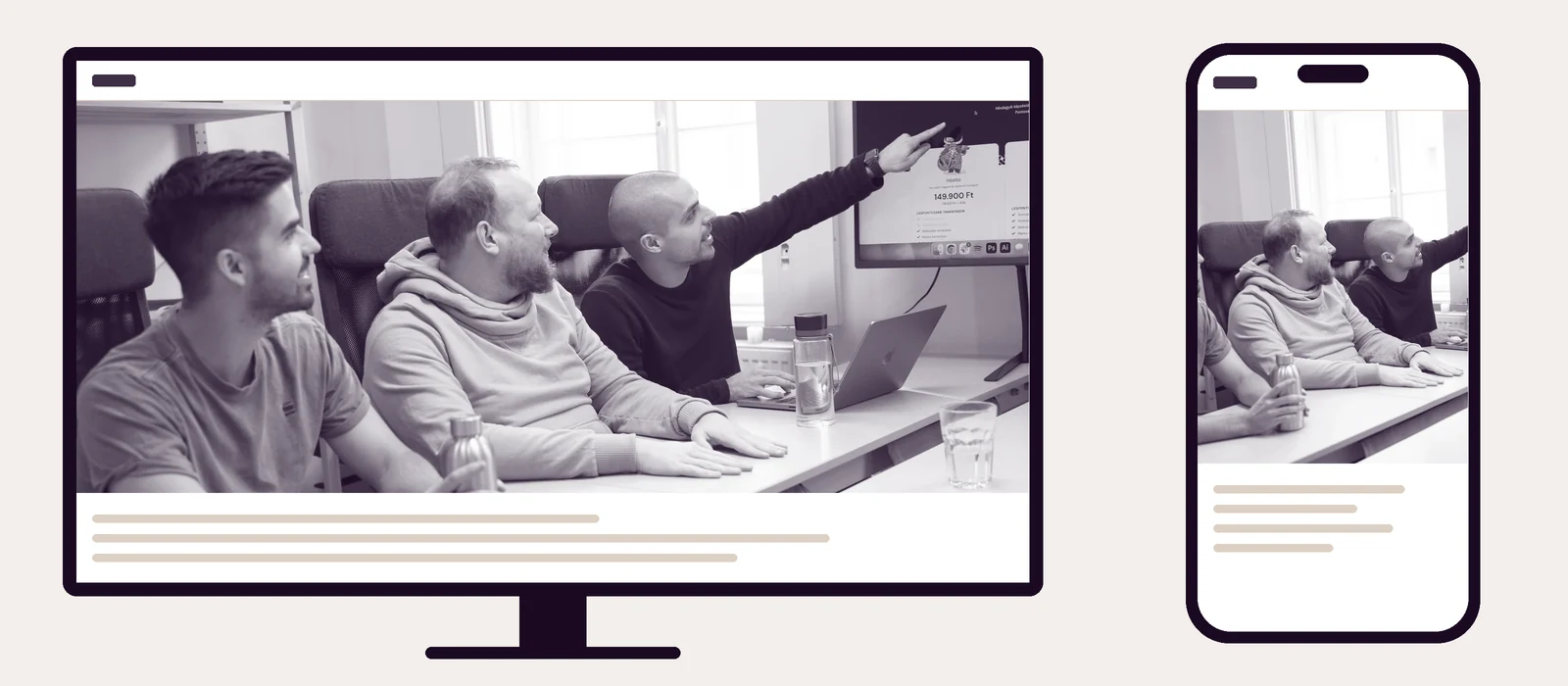
The same header image on a desktop and on a phone. The phone shows the middle of the image and the edges are cut off: here the person on the left and the projector screen too. So put the key part (a face, a product) in the middle with some space around it. Don’t use a portrait-format photo in a header.
Sharing image (og:image)
This is the image people see when someone shares your page’s link on Facebook, Messenger, LinkedIn or Viber. The name comes from the Open Graph standard: the og:image line in the page’s code tells these apps which image to show. Its size is 1200 × 630 px.
For blog posts it comes from the featured image, so upload that in this size too. For other pages you can set it in the editor, in the Yoast SEO Social appearance section. Keep the important part (logo, title) away from the edges, because some apps shrink it or crop it to a square. This is the sharing image of our Hungarian home page:

3. Give it a meaningful name
Google can tell from the file name what is in the image. It also makes it easier for you to find later.
- Don’t:
IMG_4521.JPG,image1.jpg,Final FINAL (2).png,Screenshot 2026-10-12 at 14.22.45.png - Do:
team-in-the-meeting-room.webp,pine-garden-gazebo-3x4-m.webp,dental-practice-waiting-room.webp
3–5 words about what is in the image: lowercase, with hyphens between the words. Rename the files before you drag them into the Image Optimiser. It removes accents and spaces (Café terrace.jpg becomes cafe-terrace.webp), but it can’t guess anything from IMG_4521.
4. Optimise it with the Image Optimiser
Open this page (its interface is in Hungarian, so we give the labels in English in brackets): kepoptimalizalo.vikingoapp.hu
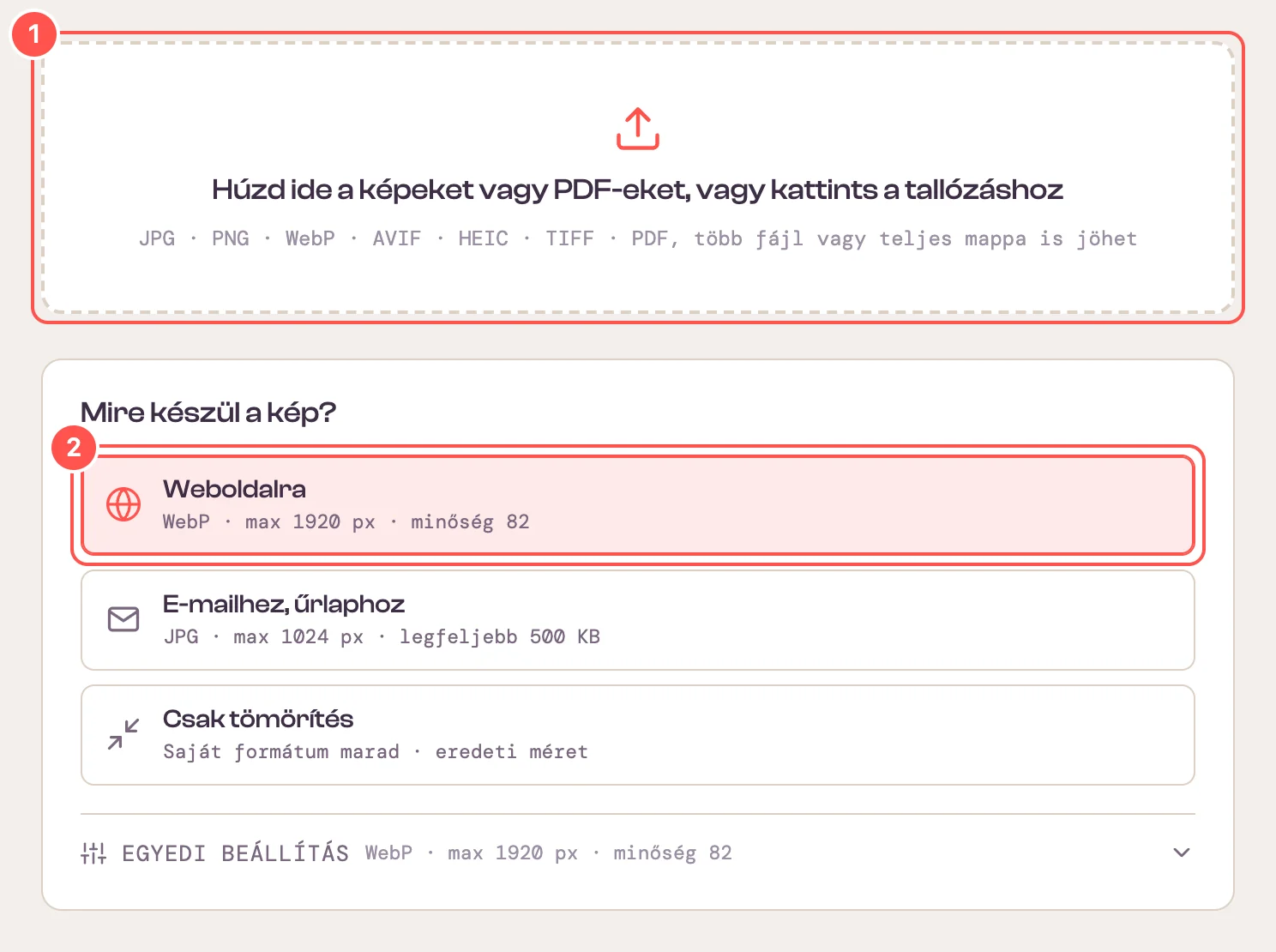
- Drag the images into the dashed box, or click it and select them. A whole folder works too, and so do iPhone HEIC photos.
- Under “Mire készül a kép?” (What is the image for?), leave the Weboldalra (For websites) preset: it is selected by default.
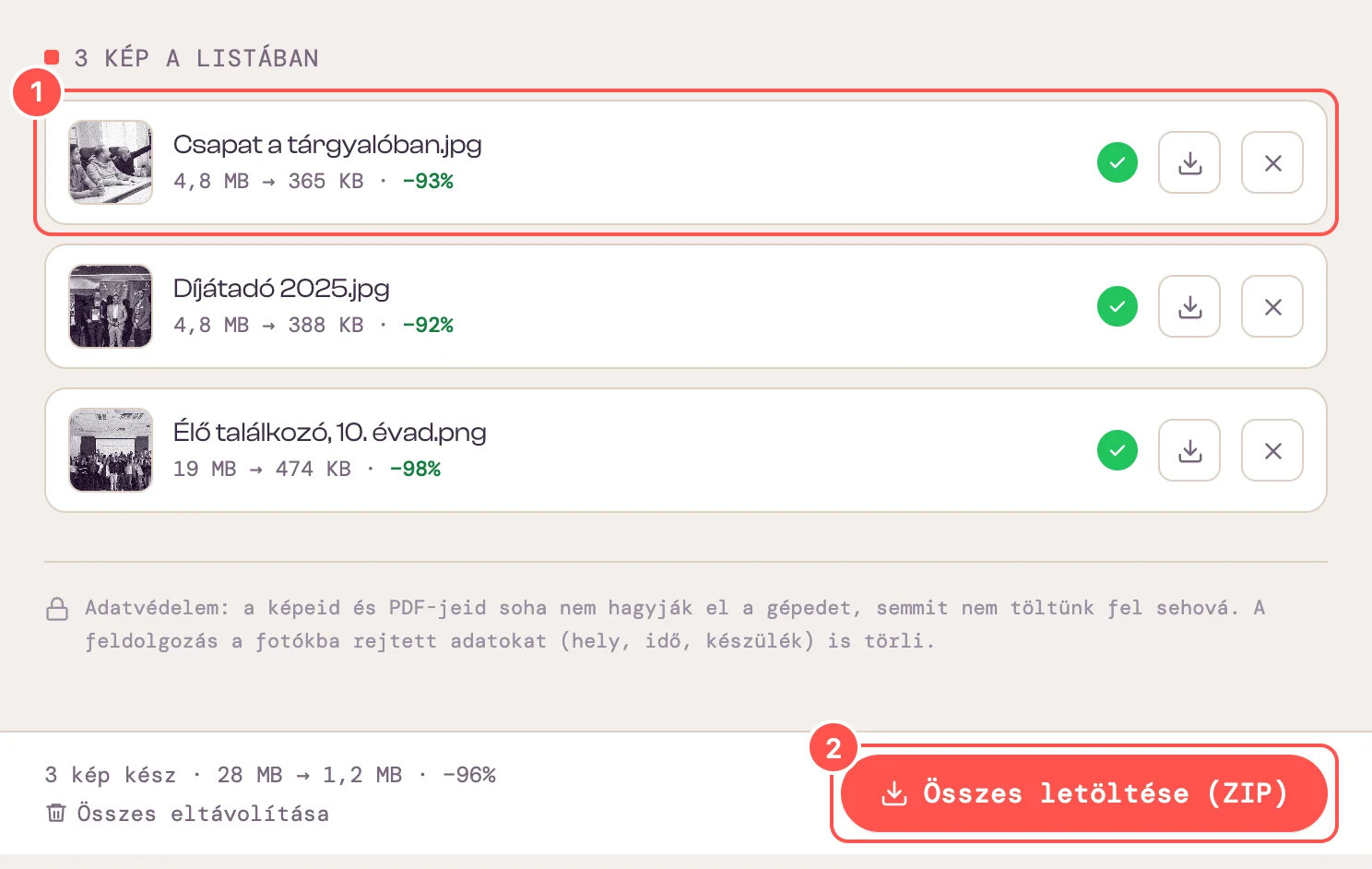
- After a few seconds a green tick appears next to each image, with the old and new size below it.
- Click the Összes letöltése (ZIP) (Download all) button, then unzip the downloaded file.
Everything happens in your browser: the images are not uploaded anywhere, and it also removes the data hidden in them (such as where the photo was taken).
What it takes care of for you
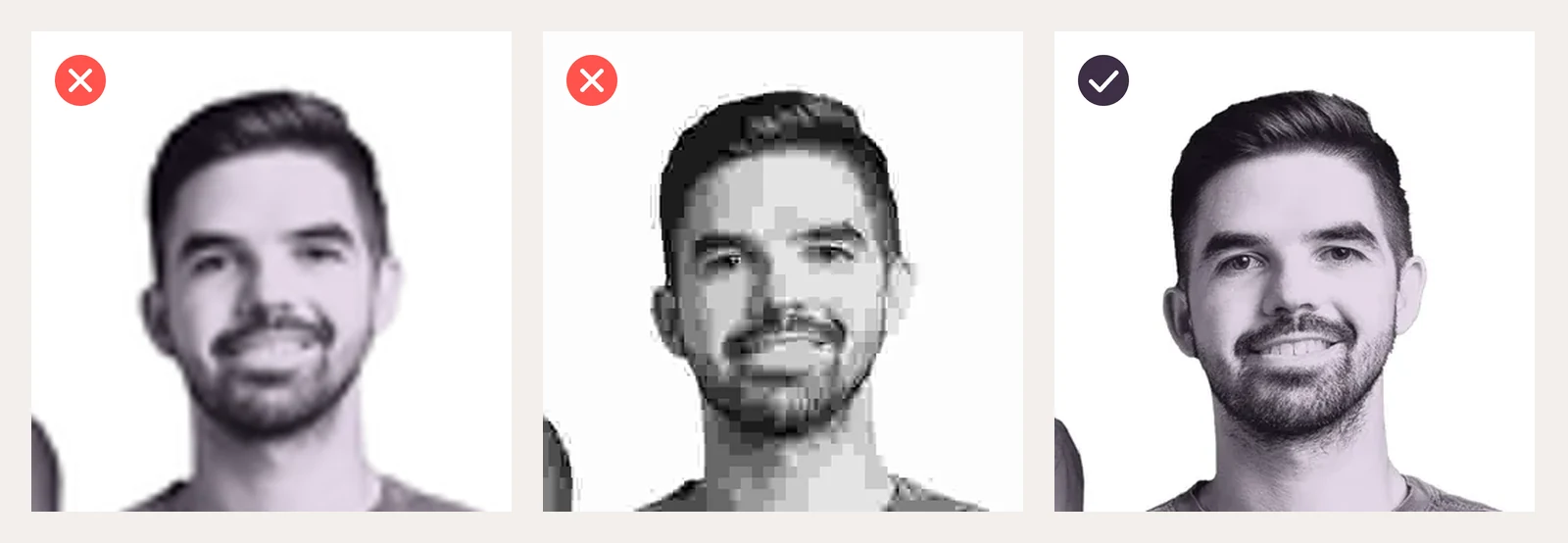
On the left, an image that is too small and gets enlarged by the website: blurry. In the middle, an over-compressed one: blocky. On the right, one made with the Weboldalra preset: sharp, even though the file is a fraction of the original. The compression is lossy, but at quality 82 you can’t see it: that is what makes the file small.
The other two presets: E-mailhez, űrlaphoz (For email and forms) creates a JPG of up to 1024 px and 500 KB, for sending the image by email or through an official form. Csak tömörítés (Compress only) keeps the image’s format and size.
5. Upload it and write alt text
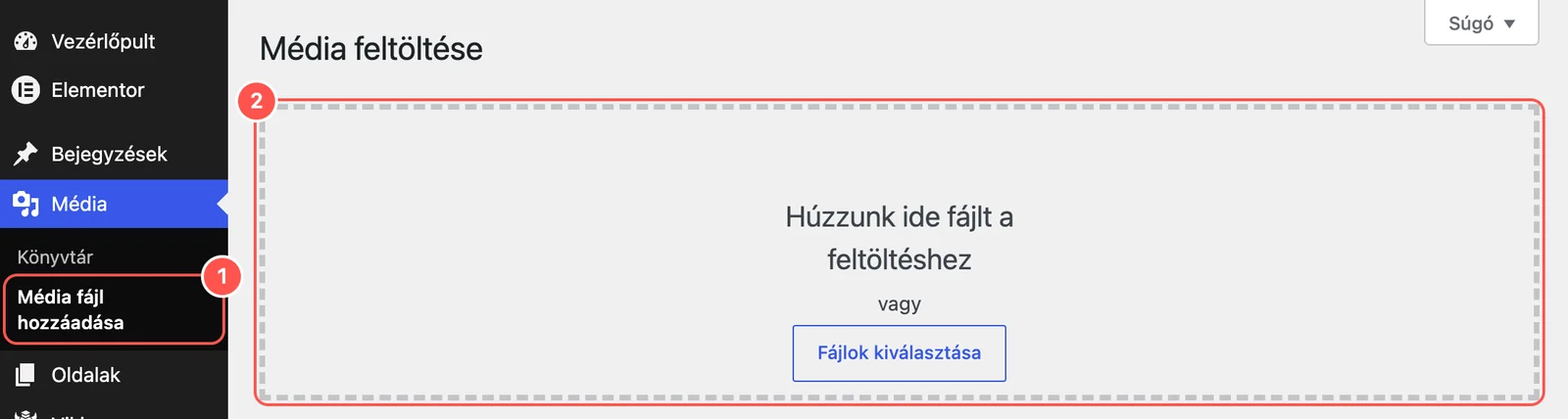
- In the WordPress left-hand menu, choose Media › Add Media File.
- Drag the unzipped images into the dashed box, or click the Select Files button.
In Elementor you can drag them in the same way into the media library that opens when you choose an image.
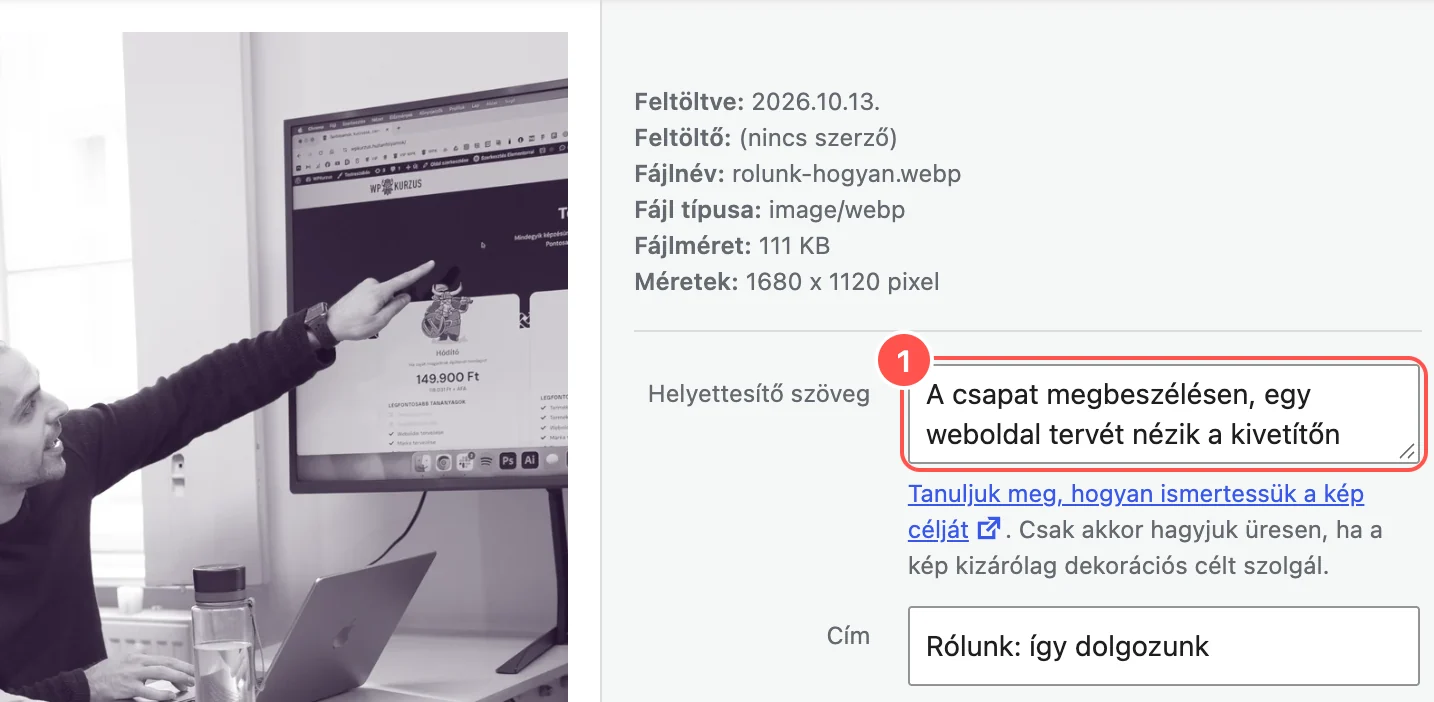
Click the uploaded image and fill in the Alternative Text field: one sentence about what is in the image. Screen readers read it out to visually impaired visitors and it shows if the image doesn’t load. Google also uses it to understand what the image shows.
- Don’t:
imageorIMG_4521, because it says nothing. - Don’t:
web design budapest cheap website, because that is keyword stuffing, which Google may treat as spam. - Do:
The team in a meeting, looking at a website design on the projector
For a decorative image (a pattern, a line) you can leave it empty. WordPress fills in the “Title” field from the file name, so you don’t need to do anything with it.
6. If you send the images to us
If we are putting the images on your website, don’t optimise them: we need the original, largest files, because we crop and compress them to fit the design.
- Ask us for a Google Drive link if you haven’t had one yet. Always upload the images there.
- Upload the original, largest file. Don’t worry, we have plenty of storage.
- If you name the files as well (see step 3), that helps a lot.
Don’t send them via Messenger or WhatsApp, because these compress and shrink the images.
All done. If you get stuck or aren’t sure which size you need, get in touch with us.